Output and Details
Quokka’s Output and Details view helps you move from a runtime event to the value behind it without losing your place in code. The Output list keeps logs, values and errors close to their source location, while the Details pane gives the selected item more room for inspection.
Output List
Each output entry links back to the code that produced it and can be selected for deeper inspection. Use the Output toolbar to switch display modes, filter output, and access additional actions.
When you are working through a busy file, the list is designed for quick scanning:
- source locations stay visible so you can jump back to the relevant line,
- selected entries remain connected to the expanded value in Details,
- logs update as Quokka re-runs your code.
Details Pane
The Details pane expands the selected output entry into an inspectable value. It supports nested object navigation, folding, indentation guides, sticky context while scrolling, and raw string display for values where formatting matters.
For larger objects, select an output entry and expand only the branches you care about. This keeps exploratory work focused while still preserving the full runtime shape of the value.
Comparing Values Pro Feature
When you want to compare runtime values, select two compatible output entries in the Output list and use the compare action in the Details toolbar. Quokka opens the values side by side so you can inspect the differences without copying them into another tool.
This is especially useful when checking how an object changes between runs, comparing two branches of generated data, or validating before/after transformations.
Copying Values and Paths
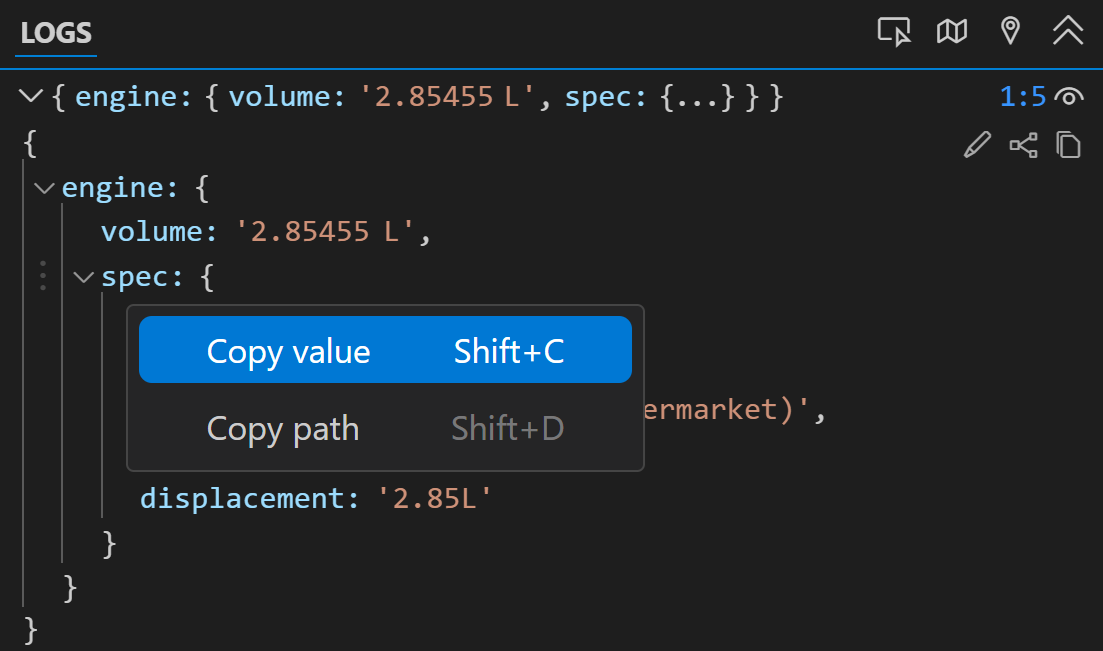
You can copy values directly from the Output and Details views. For nested values, use the context menu or keyboard shortcuts to copy either the selected value or its property path.
Related Features
- Value Explorer for inspecting complex runtime values.
- Interactive Value Graphs for visualizing object relationships.
- Advanced Logging for the different ways Quokka can capture values.